
- Training
- Service
- Promotion
- Schedule
- Testing Center
- News
- Contact
8/19/2020


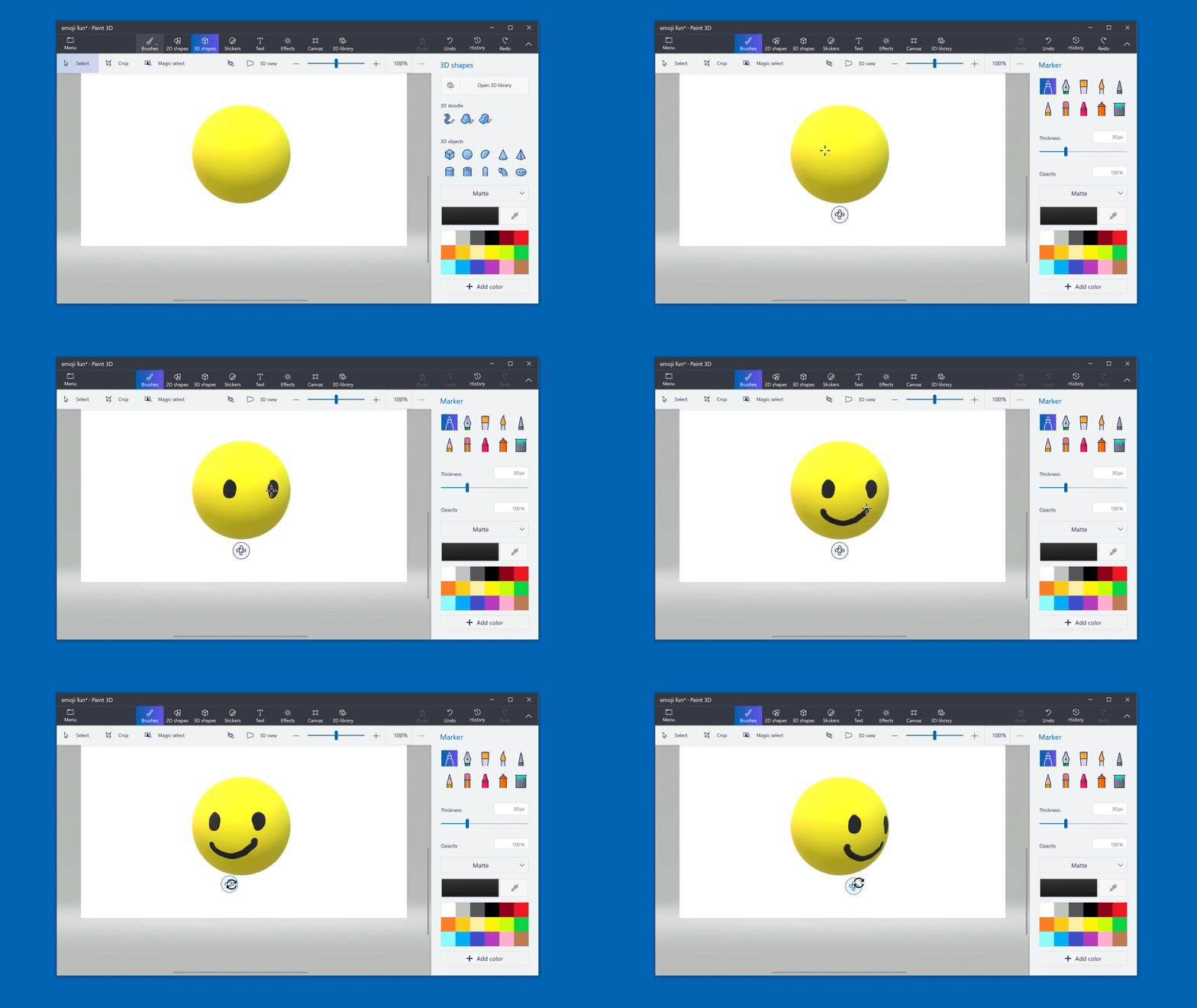
With a 3D shape open in Paint 3D  , select Brushes, choose a tool and color, then paint directly on the 3D shape. Rotate the shape to paint on any of the sides.
In PowerPoint, insert a 3D model (select Insert > 3D Models  ) and duplicate the slide. On the second slide, select the 3D model, move it, and select Transitions > Morph.

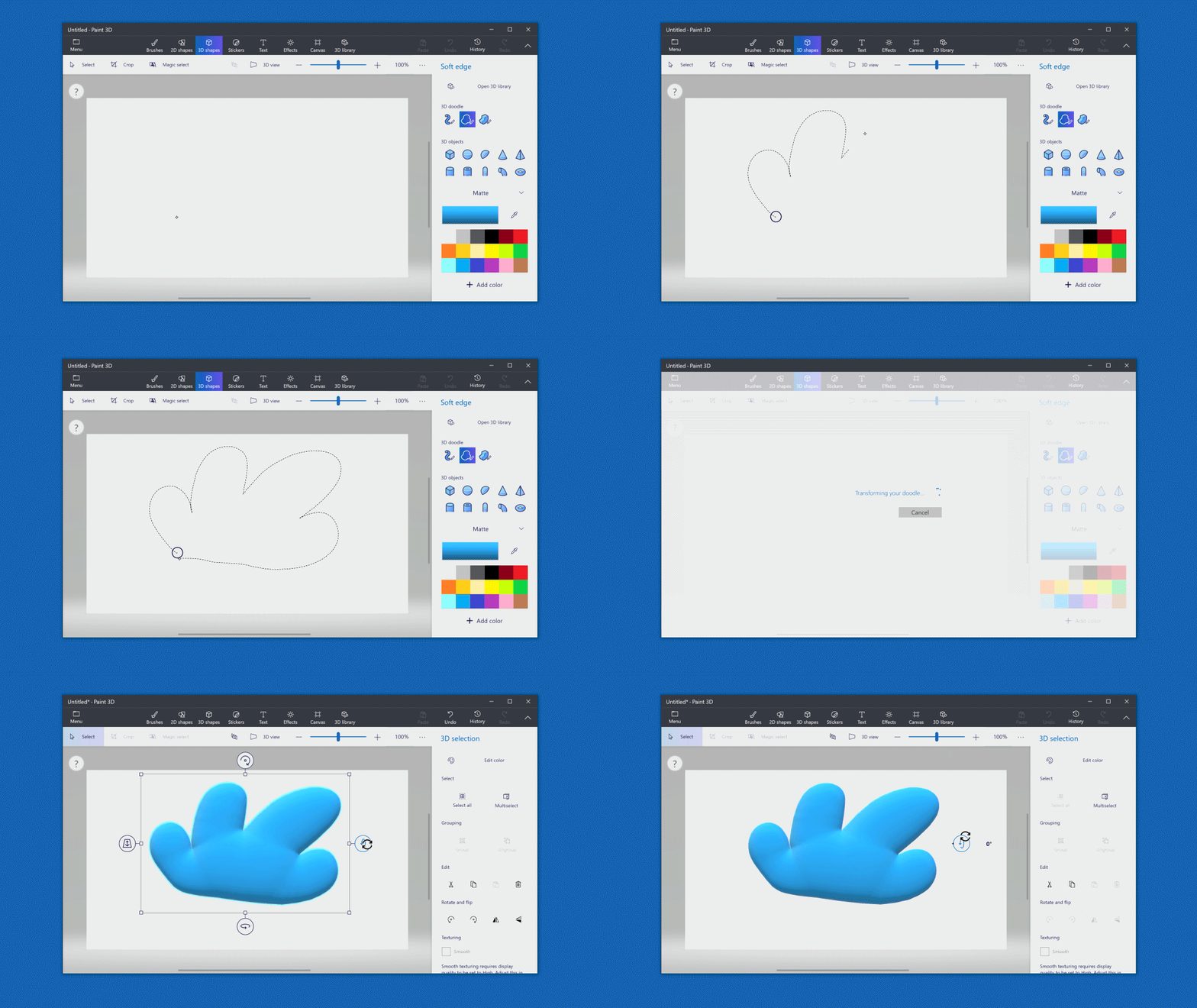
In Paint 3D  , select 3D shapes
  and choose a tool under 3D doodle. For Tube brush, draw your shape then adjust it with the dots, and for Soft edge or Sharp edge, start and end the drawing from the dot, then select Done
  .
.
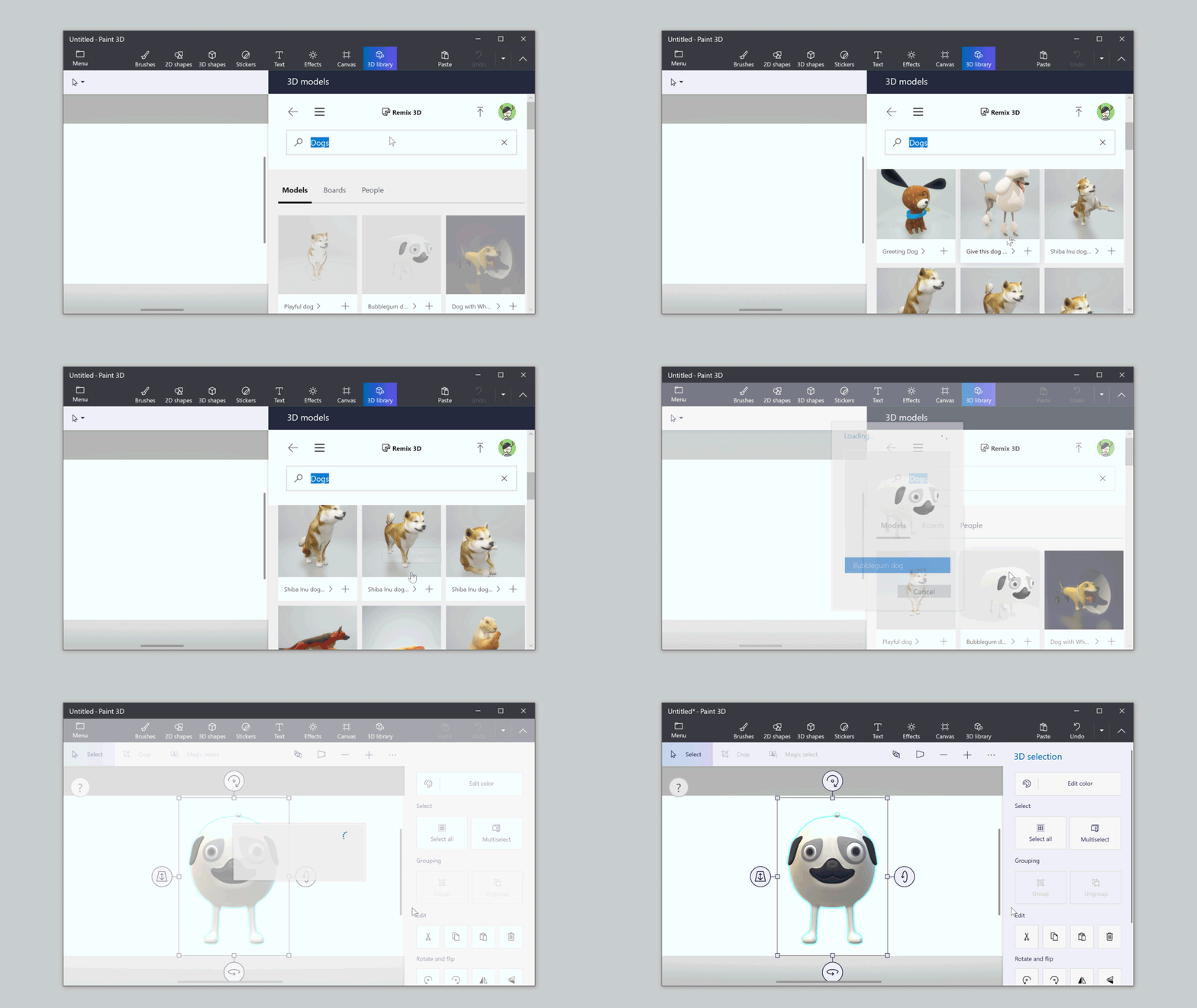
Open Paint 3D  and select 3D library
  . If you're online, you can browse or search the Remix 3D library. Select a model to add it to your canvas. Note: Remix 3D is not available in all regions.
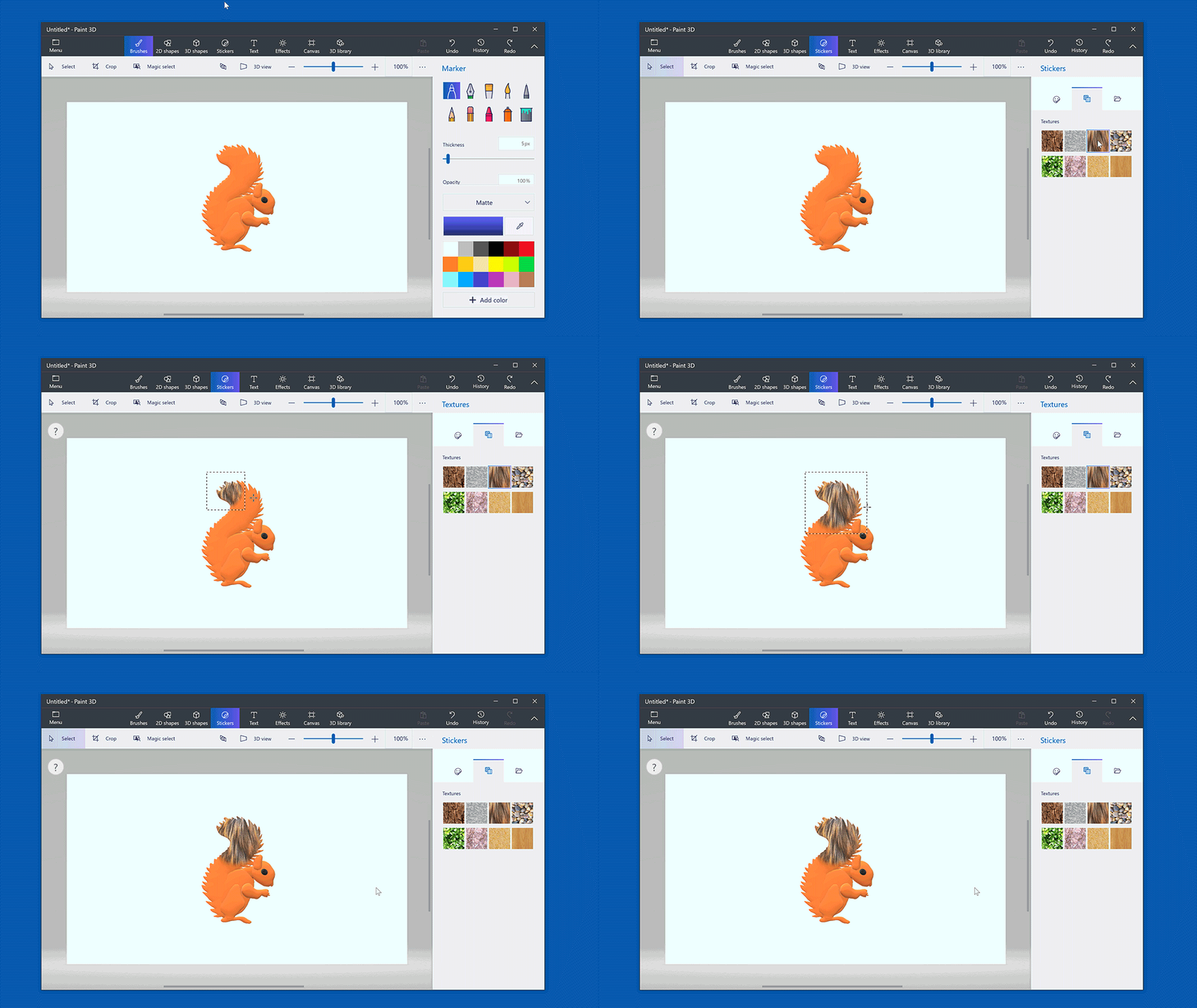
In Paint 3D  , select Stickers
  then choose from the Textures. Click a 3D object or model to apply it
  , or select an area and select Stamp
  .
.
Make a mistake? In Paint 3D  , click History
  , drag the slider to step back through your changes.
In Paint 3D  , select 3D shapes
  from the top menu, select a 3D object from the right menu, and draw the shape. Then rotate or move your creation wherever you want on the canvas.
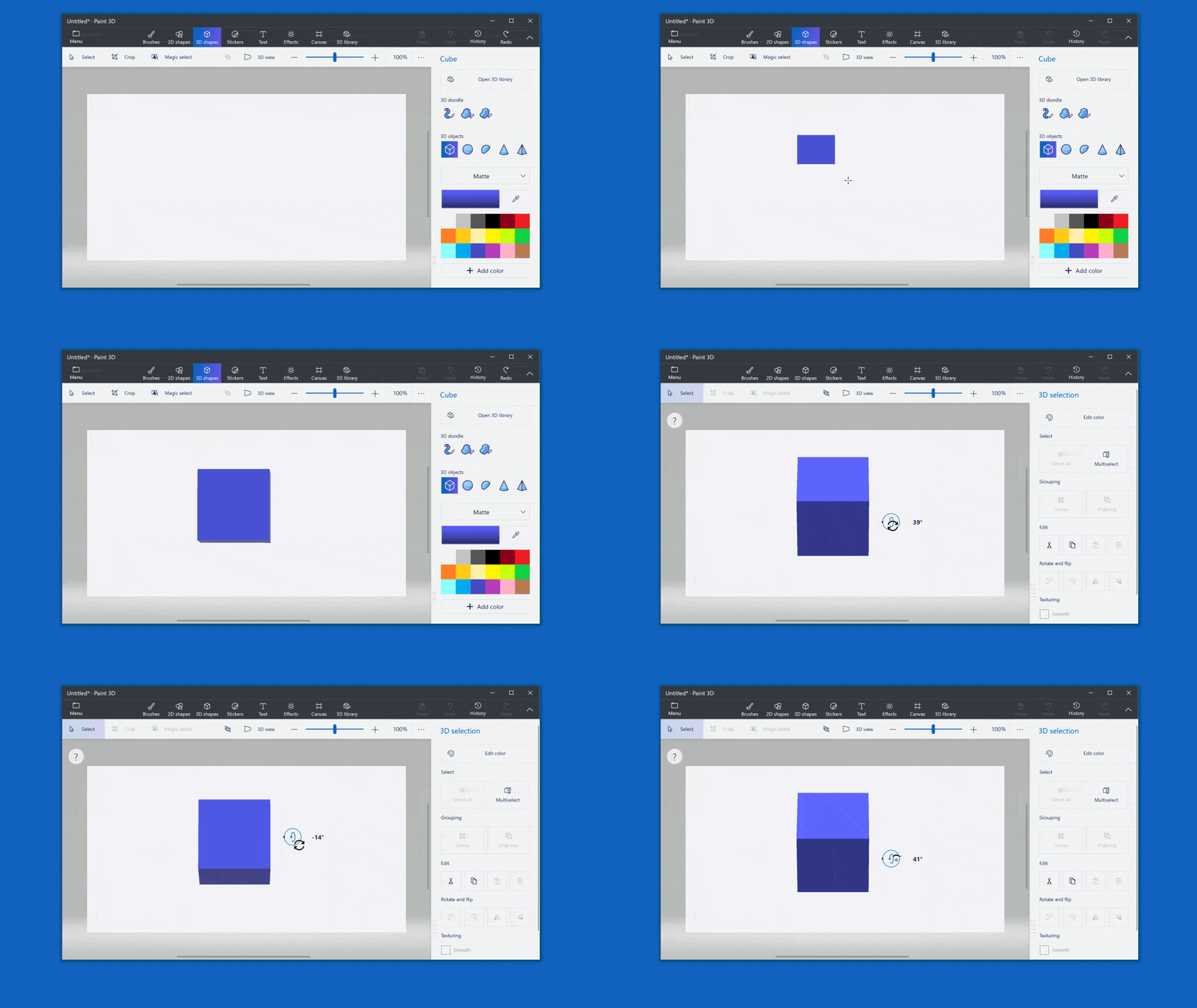
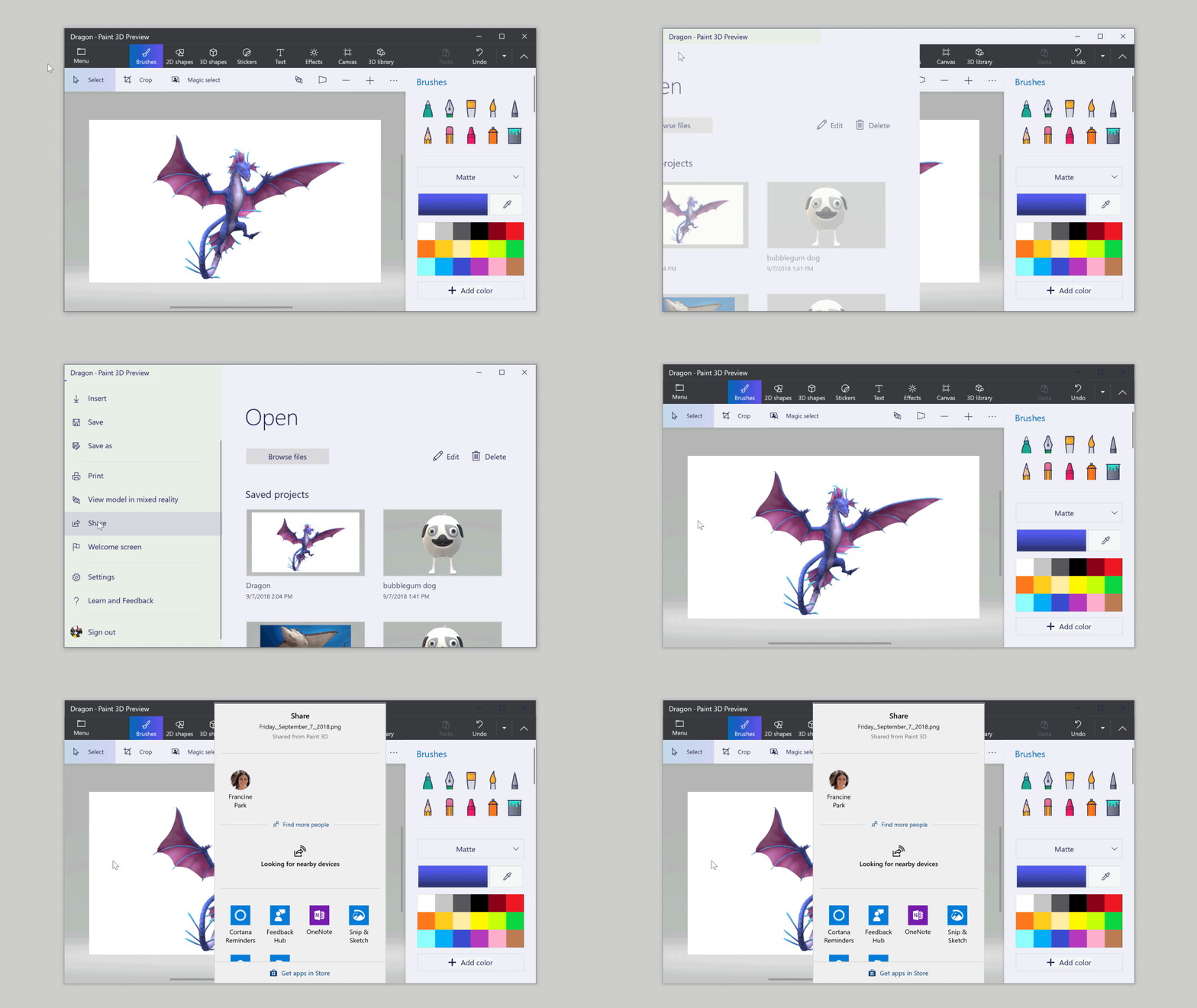
3D creations look best without the canvas, so select Canvas and turn Show canvas off. To share with specific people or on social media, select Menu  > Share
  .
.
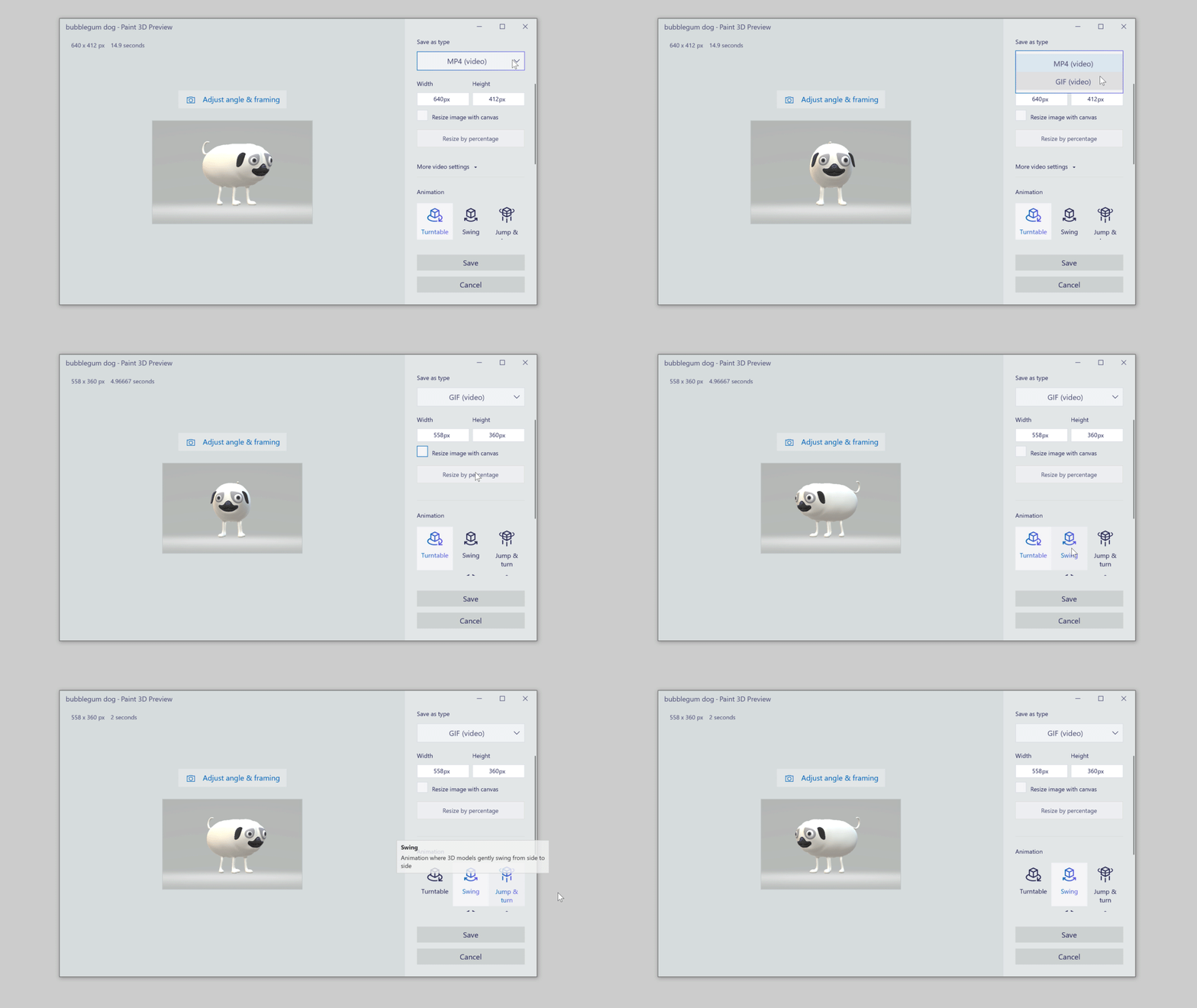
Open a 3D model in Paint 3D  . Select Menu
  > Save as video > Save as type > GIF (video). Choose a size, animation style, and speed for your animated GIF, then select Save.
Open an image in Paint 3D  , choose Select, select an area, then choose Magic select
  . Adjust with Add and Remove, check Autofill selection to fill in the background, then select Done. Now you can move, rotate, or delete the selection.
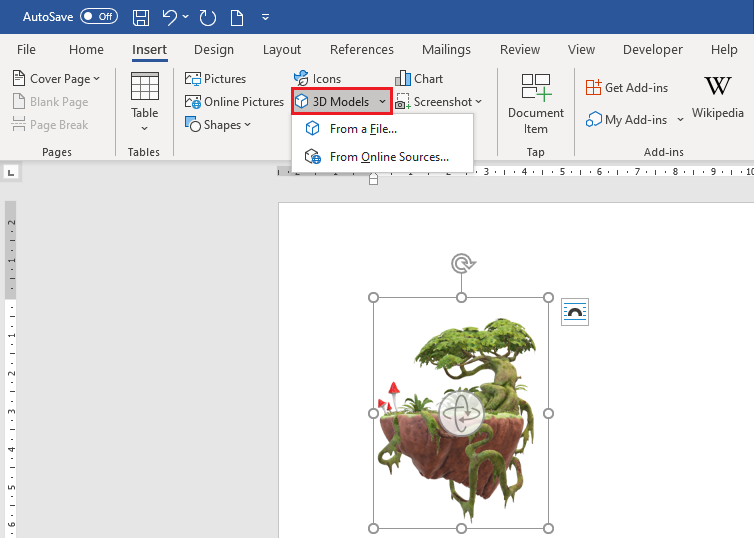
Open Microsoft Word, PowerPoint, Excel, or Outlook. Select Insert > 3D Models. Select From a File... to insert a 3D model saved to your device, or select From Online Sources... and search or browse for a model.
Source: Microsoft Tips

12/11/2025


